1
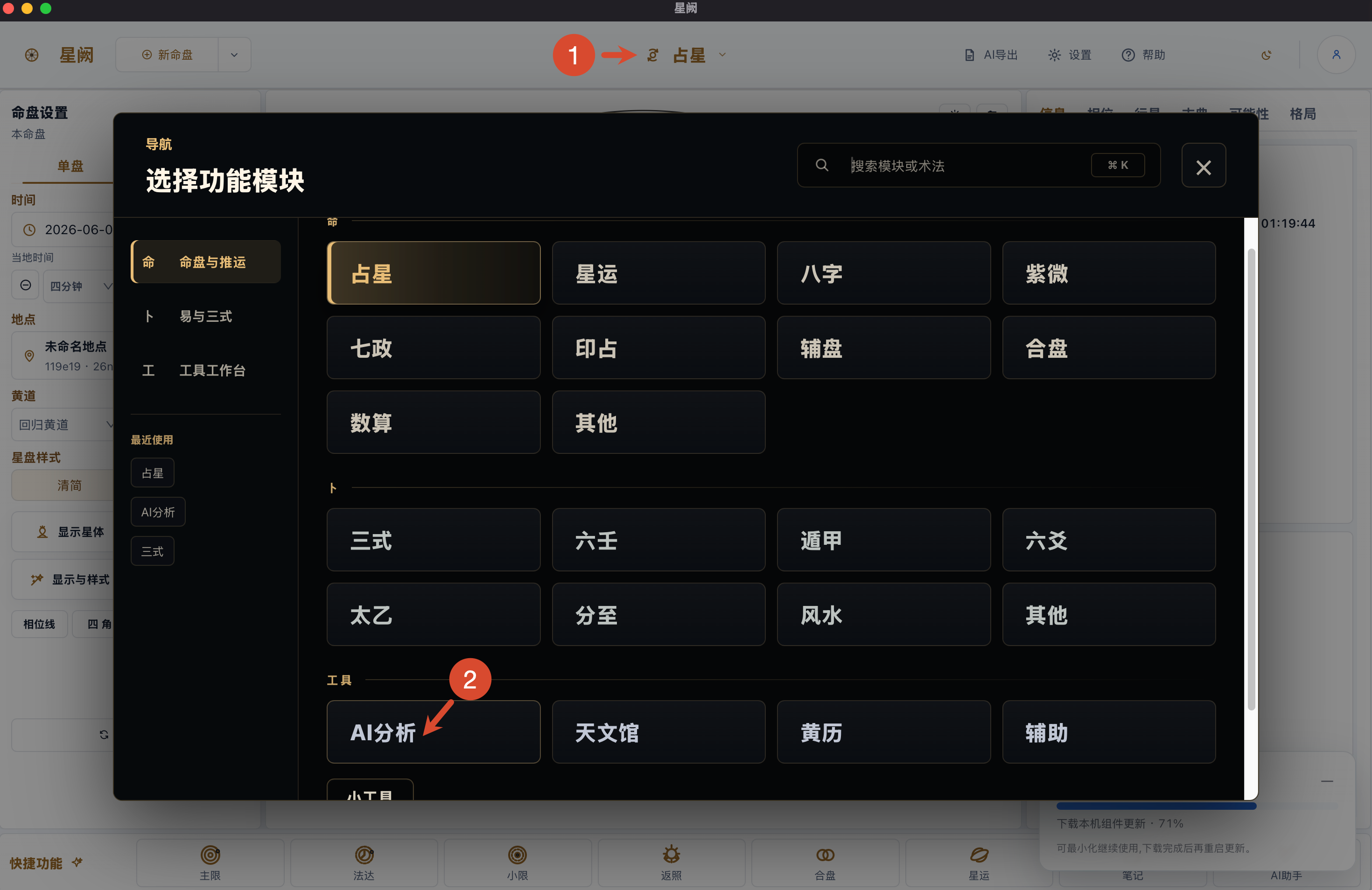
Open the AI analysis module
Click the current module name in the top bar, open “Select function module”, then choose “AI Analysis” under the tools section.
Configure the AI Key from this site in the Horosa client, then use the AI analysis module with mainstream models for chart notes, references, and structured interpretation.
Use the Key only inside your own Horosa client. This site does not store your Key. Keep it private and do not share screenshots or messages containing it, or the points may be used by others.
https://oa.ai01.org/v1Click the current module name in the top bar, open “Select function module”, then choose “AI Analysis” under the tools section.
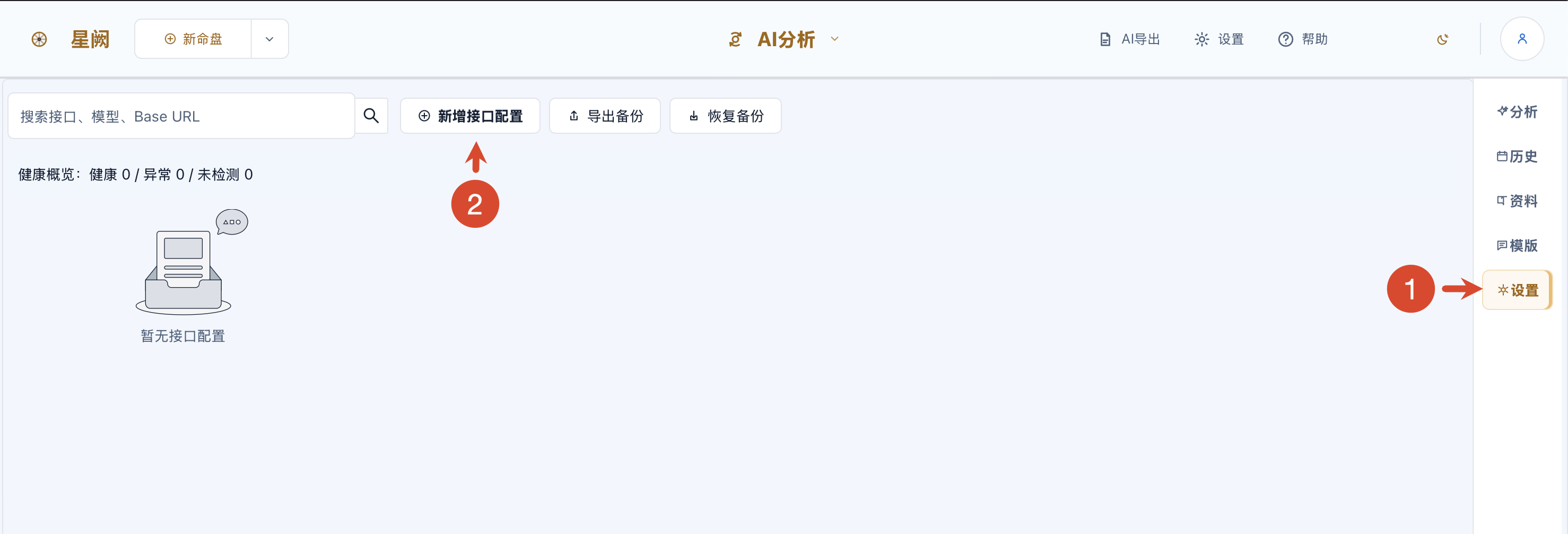
Inside AI Analysis, click “Settings” on the right, then click “Add interface configuration” at the top. On first setup, the list may be empty.
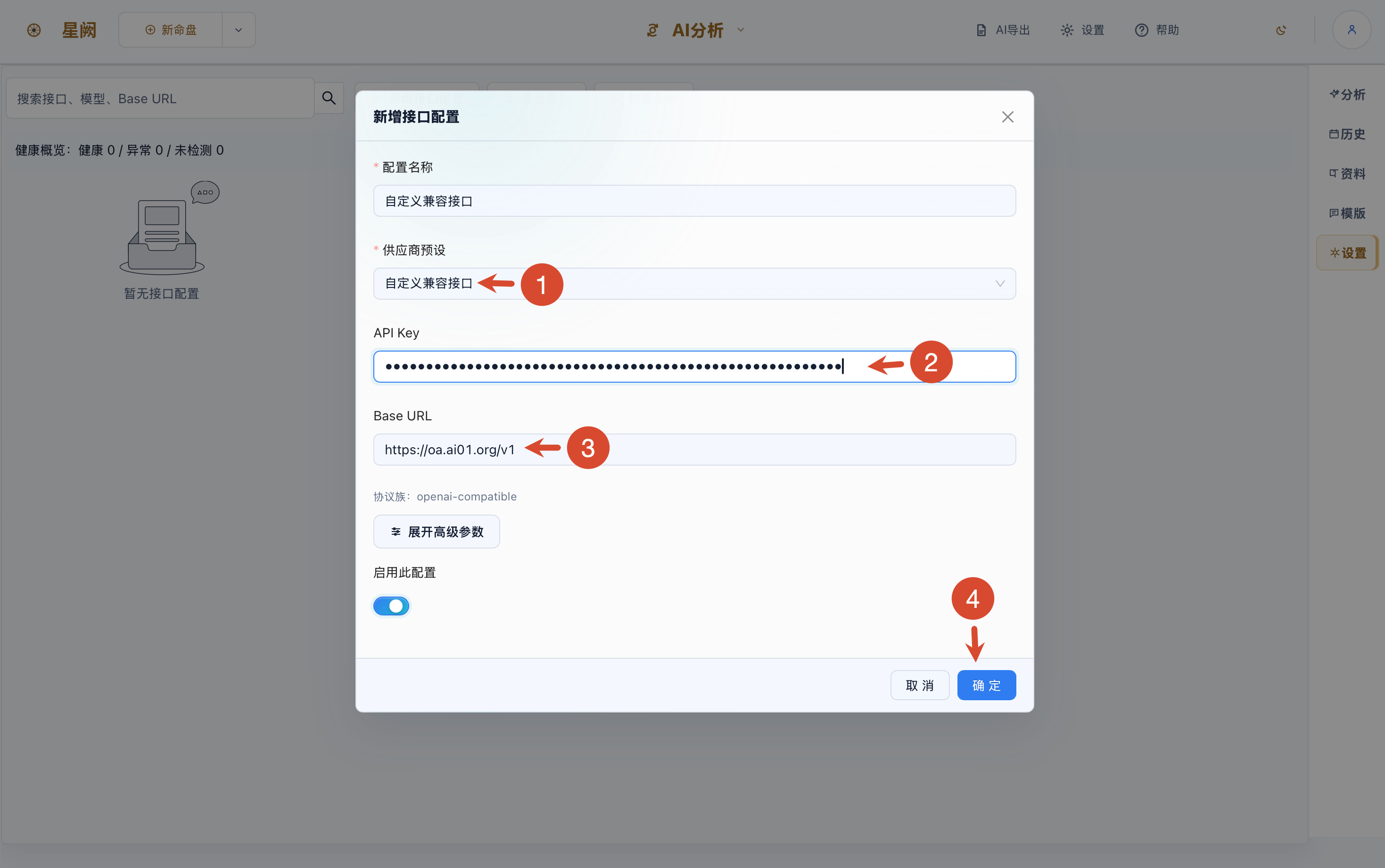
Use the custom OpenAI-compatible endpoint preset, paste your Key into API Key, enter Base URL: https://oa.ai01.org/v1, and keep this configuration enabled.
After saving the endpoint, return to the endpoint card and click “Pull models”. The left screenshot shows the unchecked state; the right screenshot shows models after a successful pull.
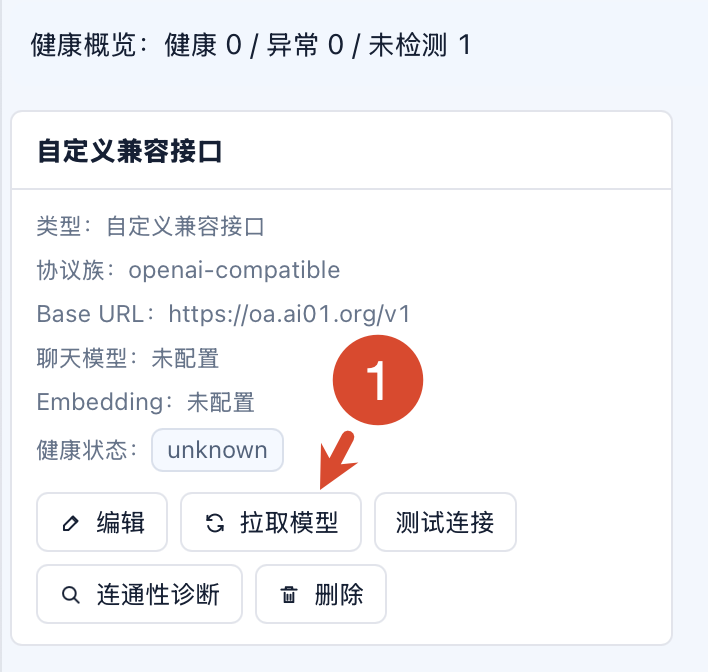
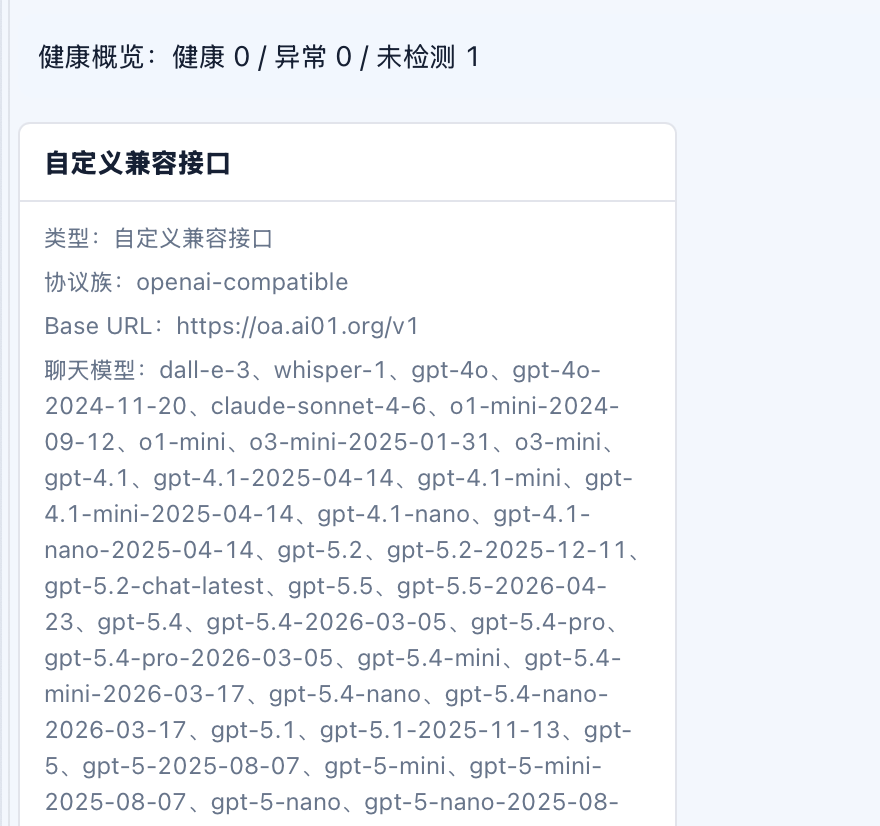
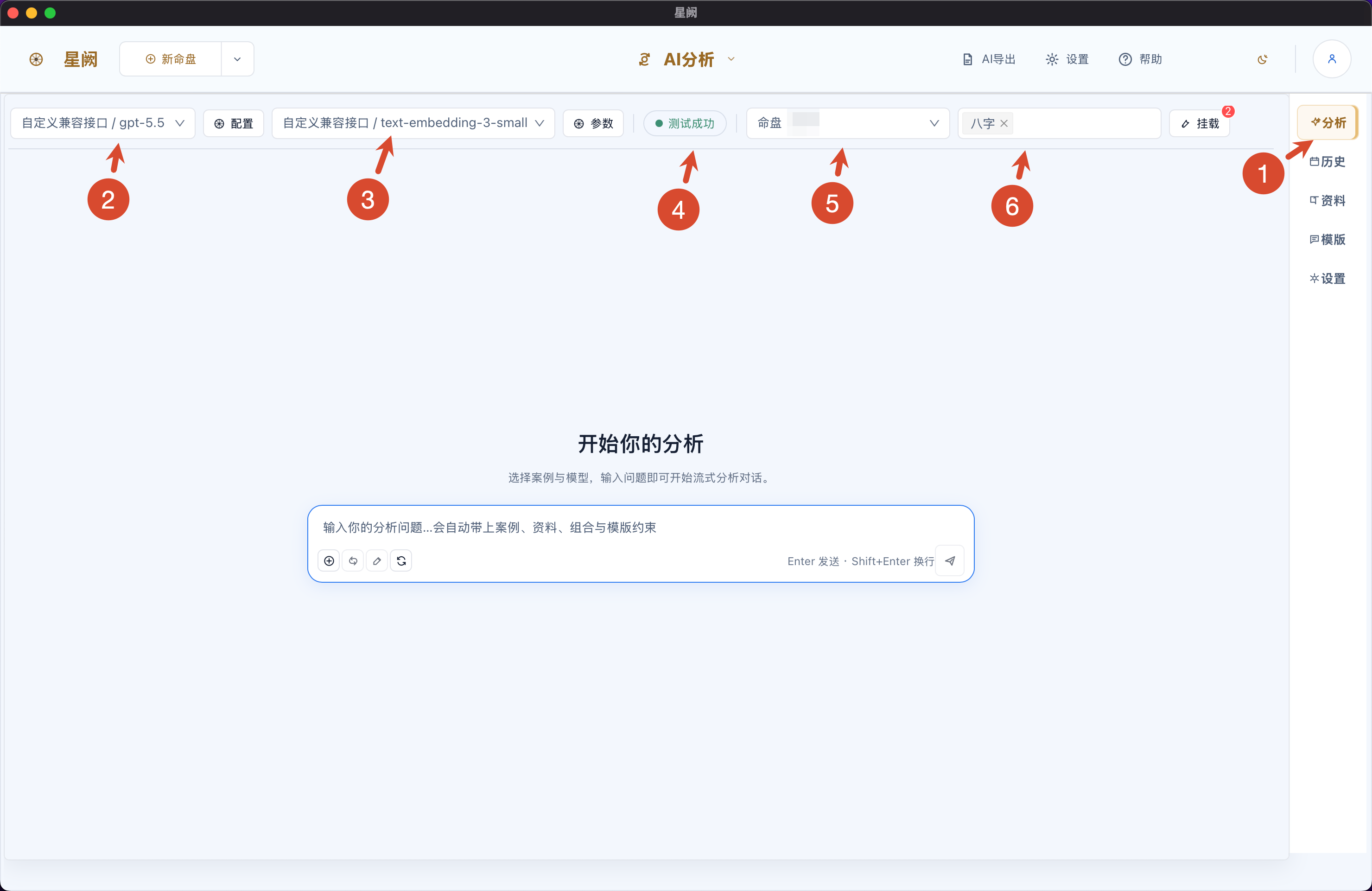
Return to the Analysis tab, select the chat model, embedding model, chart, and analysis type. Once the connection test succeeds, enter your question and send it.